4. Accessible Images
Most social-media platforms let you add images to your posts — but a very large share of those images are inaccessible to people with disabilities and older adults. A few simple habits fix that.
What is alt text, and why it matters
People who are blind or have low vision use a screen reader to browse content. When the screen reader reaches an image, it looks for alternative text (alt text) — a short written description. If alt text exists, it is read aloud so the user knows what the image shows. If it is missing, the screen reader simply announces the word “image” — and the meaning is lost.
Decorative vs. informative images
Not every image needs a description. The first question is always: does this image carry information, or is it just decoration?
| Decorative images | Informative images |
|---|---|
| Add no important information. The alt text can be left empty (marked decorative), or the image only repeats text already written in the post. | Carry information the reader needs. They must have alt text that describes their content and purpose. |
How to write good alt text
Good alt text focuses on the essential information and is short and clear:
- Keep it concise and simple — describe what matters, not every detail.
- Avoid repetition and unnecessary words.
- Don’t start with “image of…” or “picture of…” — the screen reader already announces that it is an image.
- Convey context and hidden messages — if the image has a special meaning or implied message, explain it so it is understood.
- If the image contains text that matters, include that text in the description (or in the caption).
A worked example
Complex images: infographics and charts
Infographics, posters, and charts hold a lot of information. A one-line alt text cannot capture it all. For these, give a short alt text that states what it is, and provide the full details in the post text (or a linked transcript) so nothing is lost.
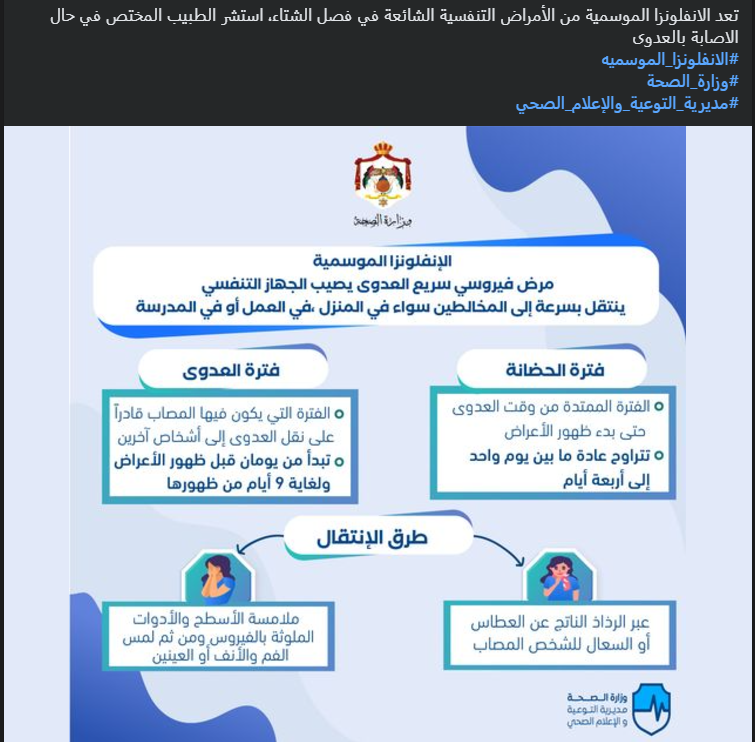
Text inside images
Avoid putting essential wording only inside an image. If you share a quote card or a text poster, repeat the wording in the post caption so screen-reader users (and search engines) can read it.
Step by step: adding alt text on each platform
- When creating a new post, upload your image (or open an existing post).
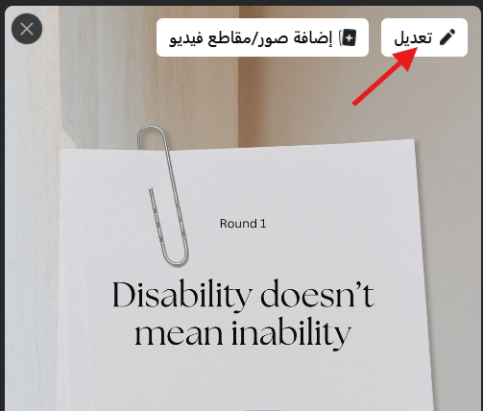
- On desktop, hover over the image and click Edit photo. On mobile, tap the image, then the three-dot (…) menu.
- Choose Alt text — Facebook may suggest automatic text, so replace it with your own.
- Type a clear description, then Save.
- Choose your photo and proceed to the final share screen.
- Tap Advanced settings at the bottom.
- Tap Write alt text.
- Enter your description and finish posting. (For existing posts: open the post, tap the “…” menu, Edit, then Edit alt text.)
X (Twitter)
- Attach your image to the post.
- Click the +ALT button on the image (on the website it reads Add description).
- Write the description (up to 1,000 characters) and Save, then post — an ALT badge then appears on the image.
- Start a post and add your image.
- Click Alt text (or the pencil / Edit icon) on the image.
- Enter your description and Save — do this before you publish, because LinkedIn does not let you edit alt text after a post goes live.
TikTok
TikTok added alt text for photo posts in 2025 (alongside an AI version). When creating a photo post, open the post settings and add your own alt text rather than leaving it to the AI. For videos, captions do the heavy lifting — see Chapter 6.
Images checklist
- Every informative image has clear, concise alt text.
- Decorative images are marked decorative (or left with empty alt text).
- Alt text does not start with “image of / picture of”.
- Any important text in the image is also written in the caption.
- Complex images (infographics, charts) are explained in the post text.